Help & how-to
Everything you need to get your farm — or your lorries — running daily checks, and answers to the questions we get asked most.
Contents
Getting started
1. Set up your farm
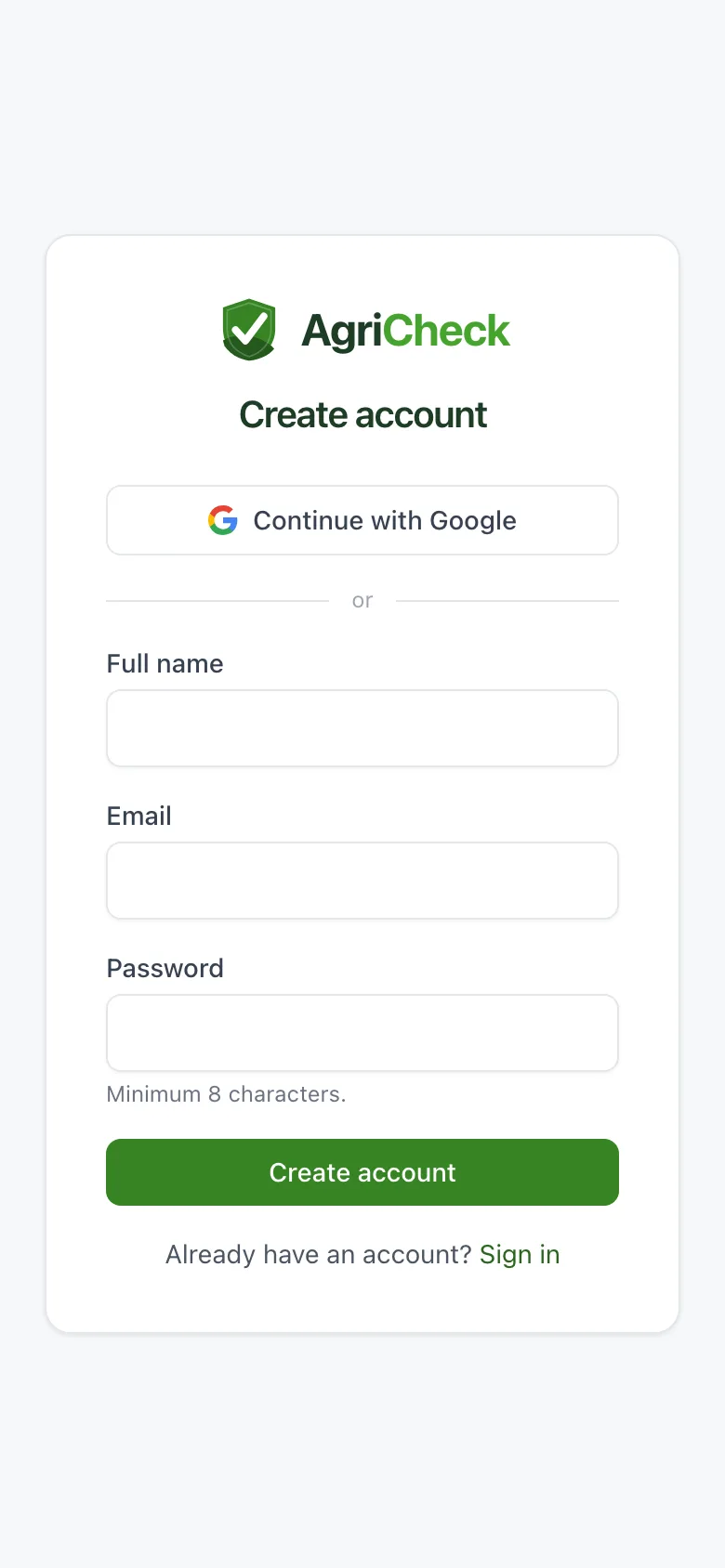
Sign up at agricheck.co.uk with your email or your Google account. If nobody has invited you, you'll be asked to name your farm — that makes you its admin.
If you were invited by someone else's farm, you'll join theirs automatically instead. Given an invite code? Enter it on that same screen.
2. Add your first machine
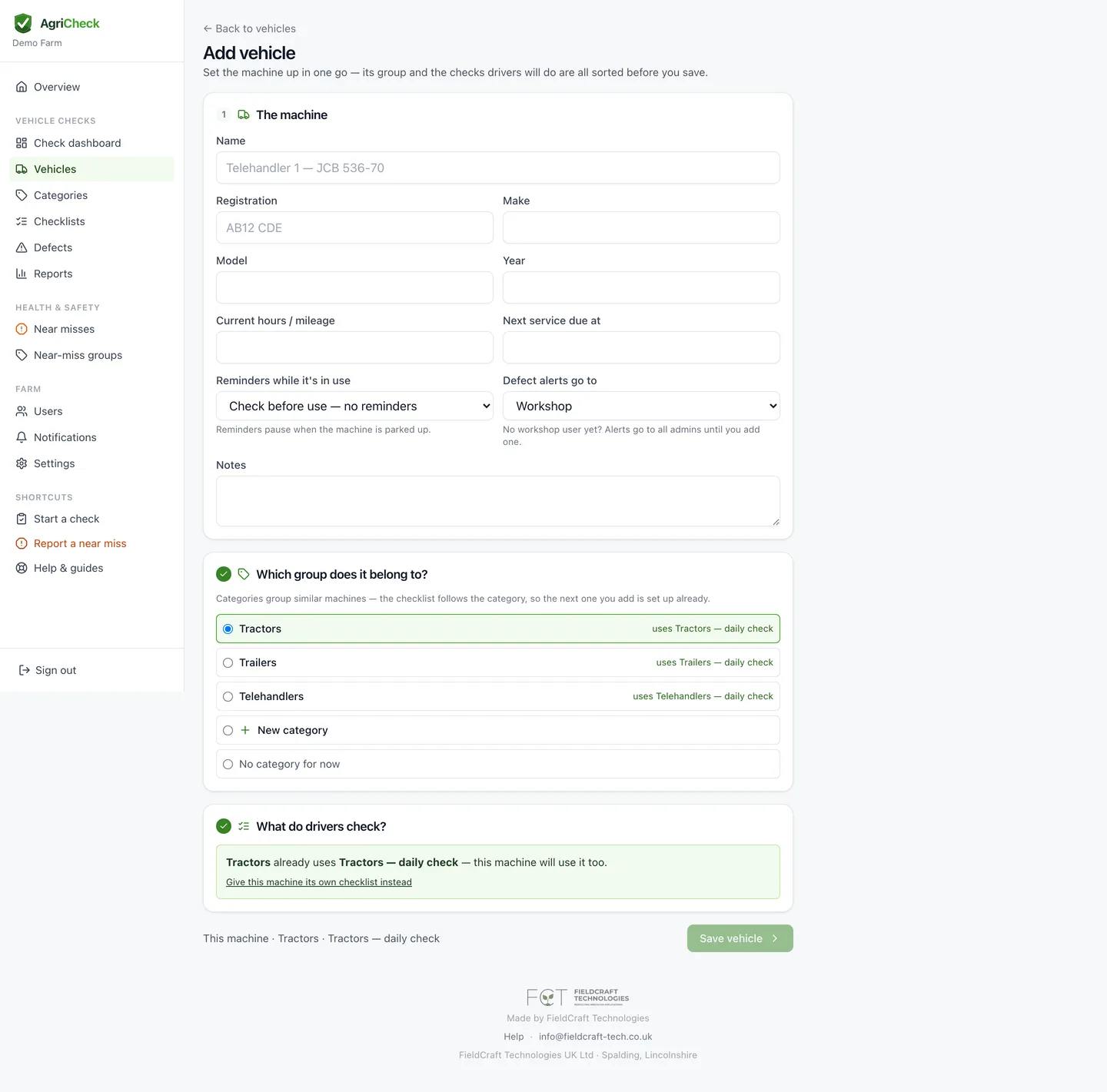
Admin → Vehicles → Add vehicle. You'll do the whole job on one page: the machine's details, the group it belongs to (create one if it doesn't exist yet — Tractors, Trailers, Telehandlers), then the checks drivers will do.
For the checks, pick the closest ready-made list — tractor, trailer, sprayer, telehandler, combine, cultivator or ATV. Untick anything that doesn't apply, tick Critical on faults that should stop the machine, and add your own items. Save, and it's all in place.
Choose whether the checklist covers the whole group (recommended — the next tractor you add inherits it) or just that machine.
3. Invite your drivers
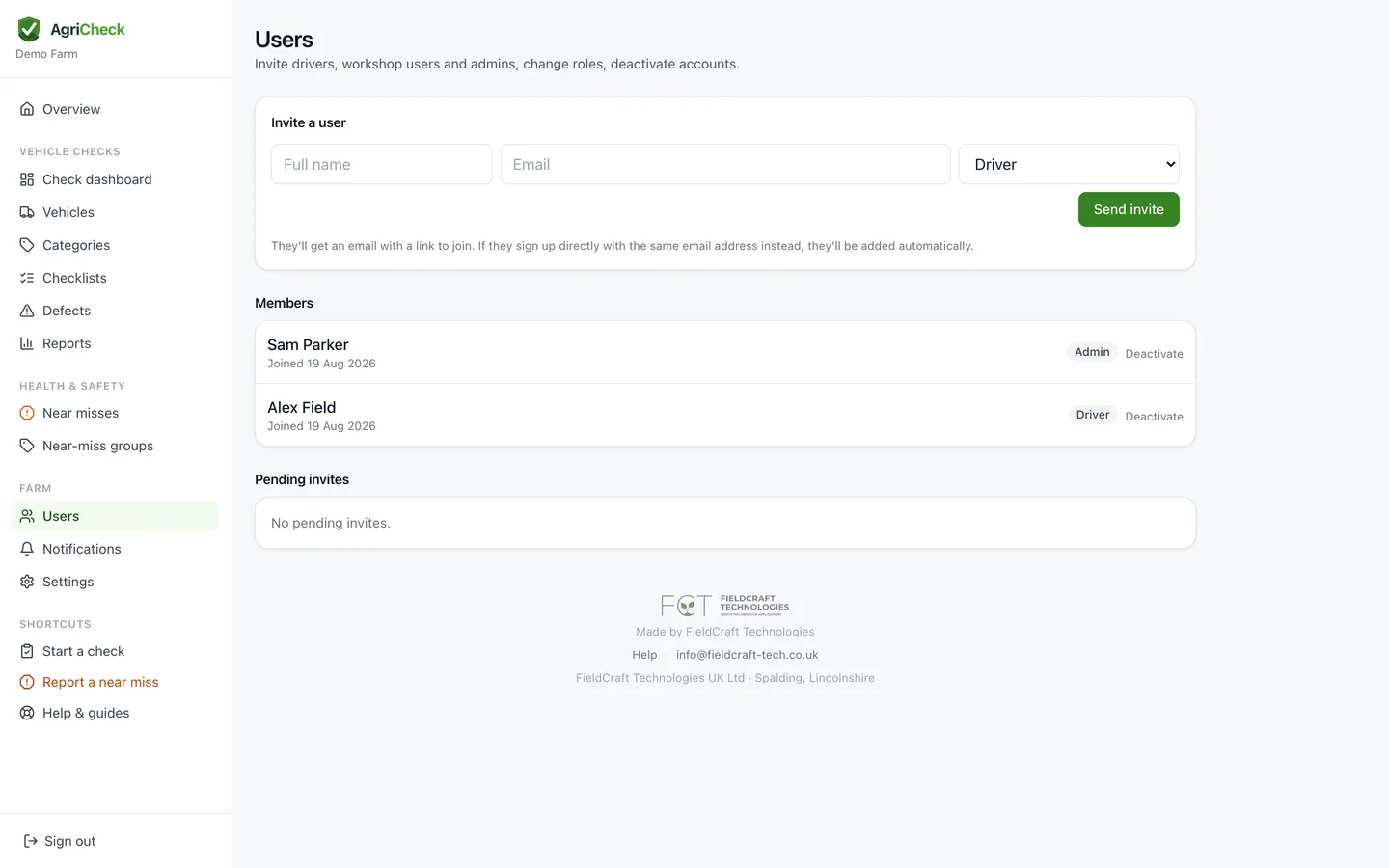
Admin → Users → invite by name, email and role. Drivers see only the check screens; admins can manage machines, checklists and defects.
They'll get an email with an Accept button. If email is awkward, use the Copy code button and text them the code instead — they enter it after signing up.
4. Put AgriCheck on the home screen
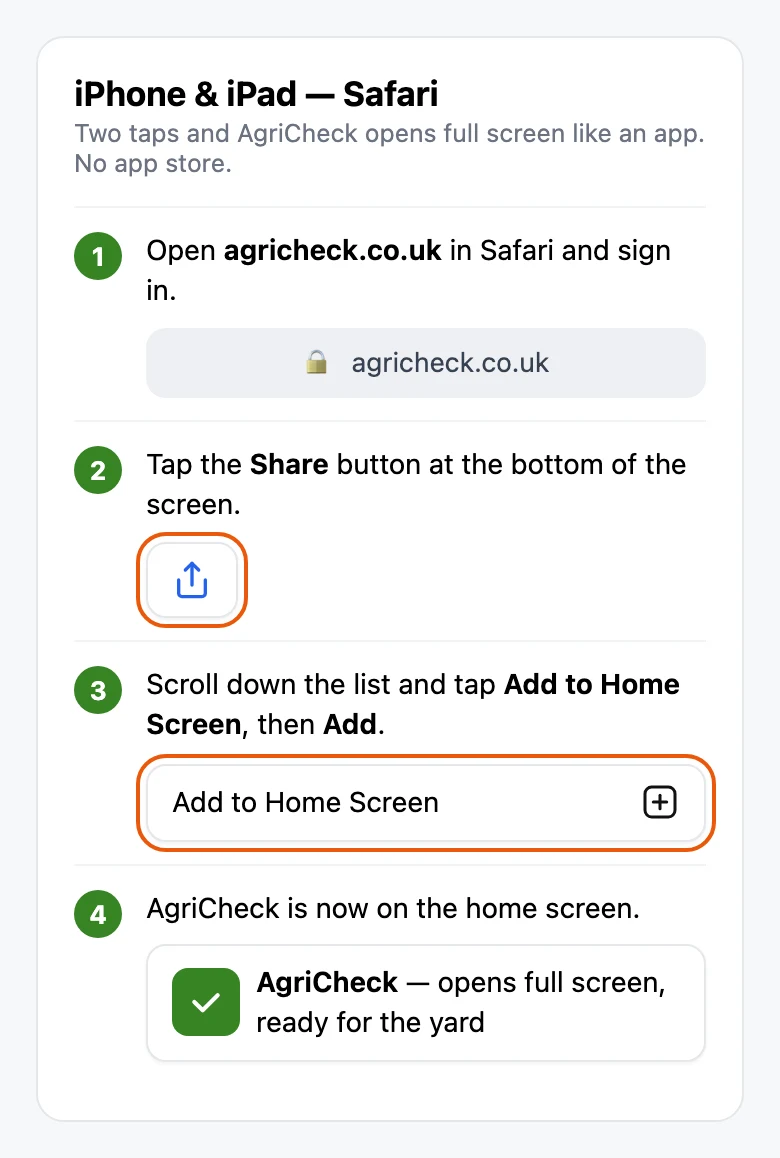
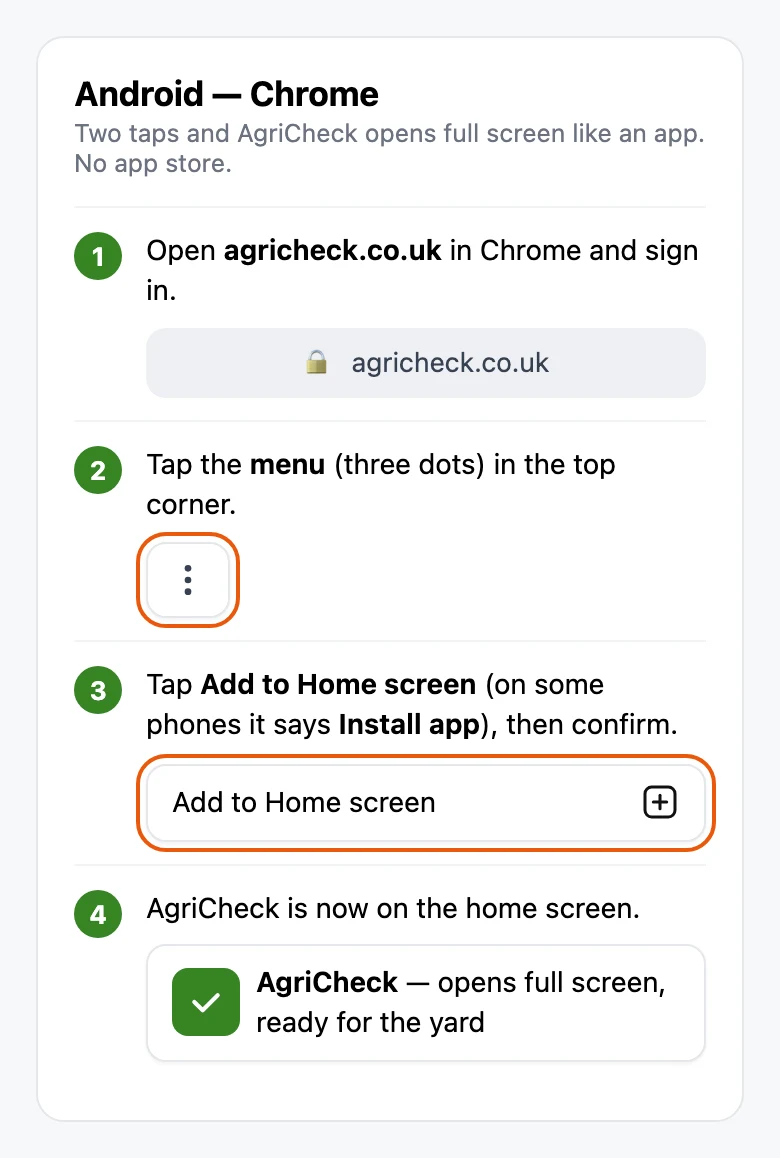
AgriCheck runs in the phone's browser, so there's nothing to install from an app store — but adding it to the home screen makes it open full screen like an app, and it's what makes working offline possible.
Worth doing on every driver's phone when you hand out invites — it takes about ten seconds each.
5. Do a check
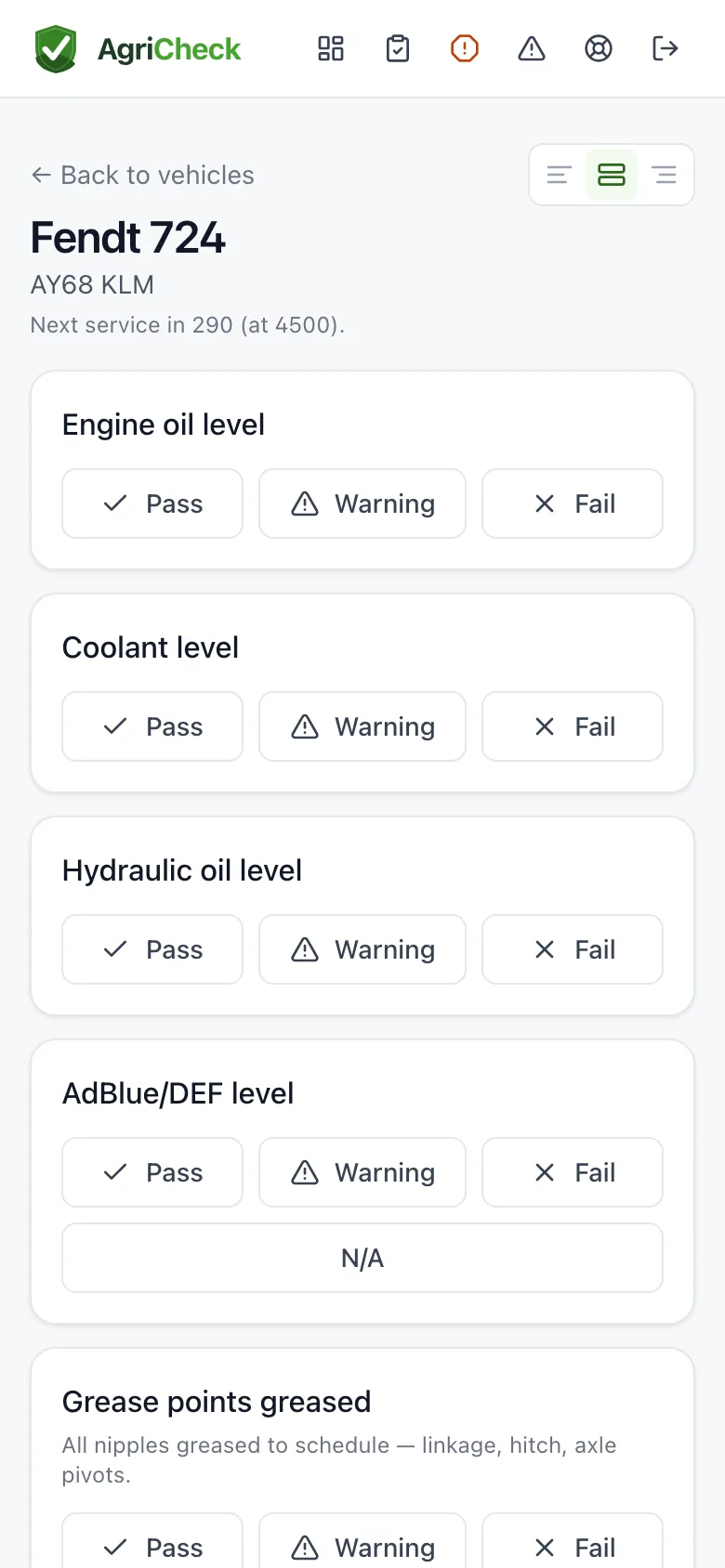
The driver opens AgriCheck on their phone, taps New check, and picks the machine. Star the ones they use most and those float to the top.
Each item is Pass, Warning, Fail (and N/A where allowed). Fail or Warning asks for a short description and lets them photograph it. At the end they enter the hours or mileage and submit.
Tip: on a tablet in the cab, use the layout buttons at the top of the check to move Pass, Warning and Fail to whichever side your thumb reaches.
6. Deal with a defect
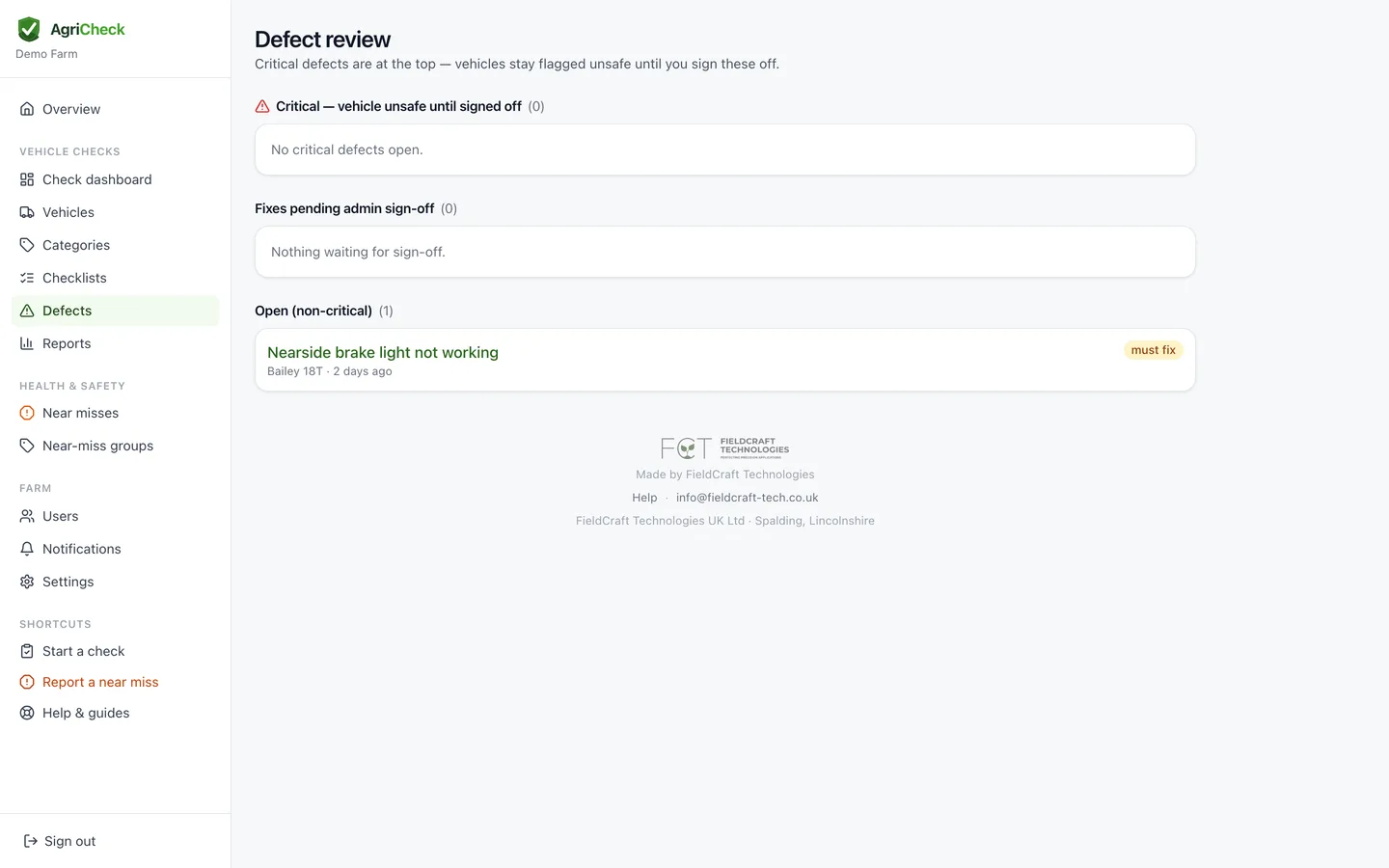
Every failure becomes a defect with its photos and history. A failed critical item flags the machine Unsafe — it stays flagged until an admin signs the fix off, which is the point.
Whoever does the repair opens the defect, describes the fix and adds photo evidence. An admin then closes it. Nothing is deleted, so the trail stays intact for an audit.
7. Machines that aren't in use
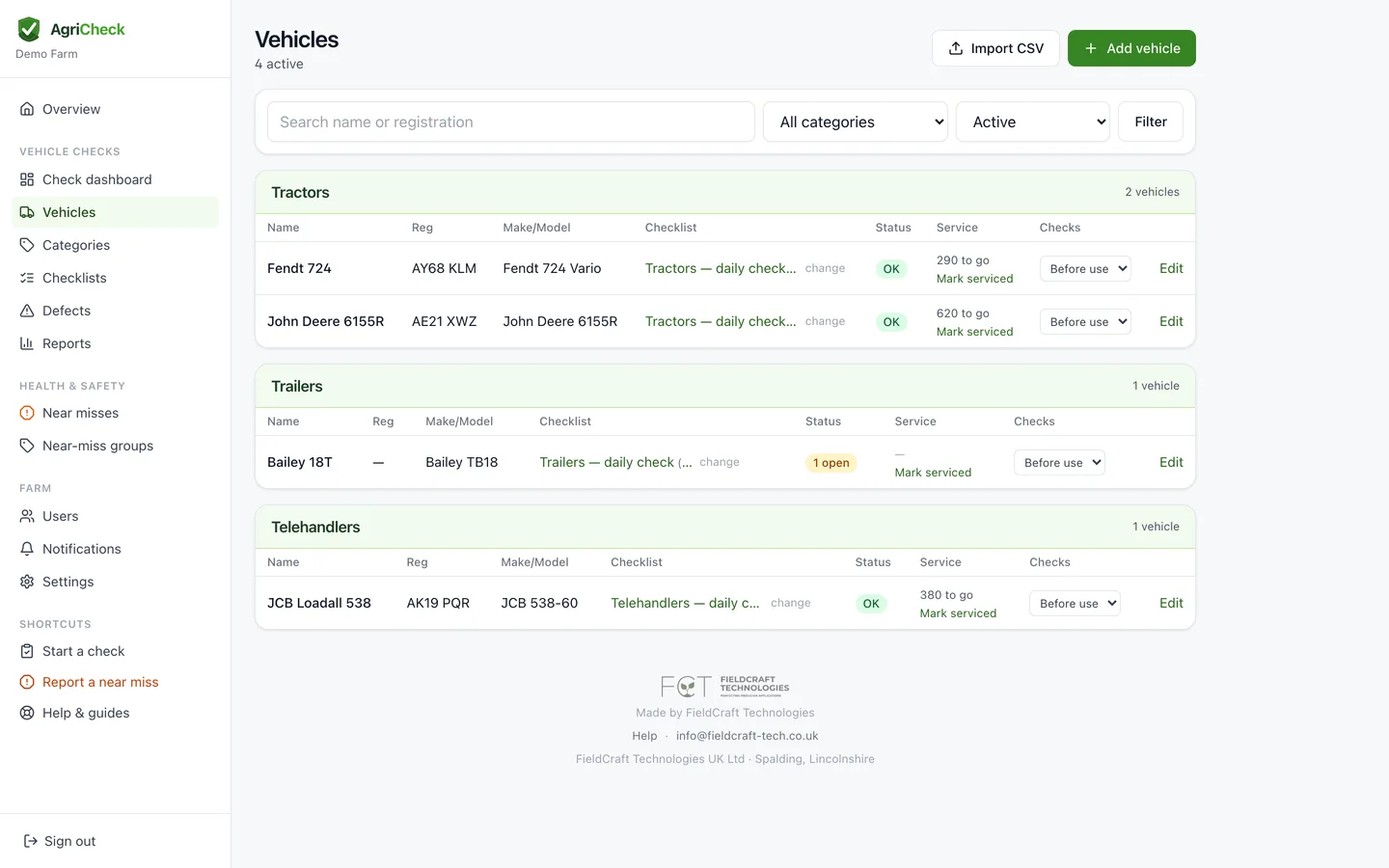
Kit parked up for the season shouldn't nag you. On the vehicles list, set a machine to Parked up and reminders stop — but drivers can still check it if it comes out.
You don't have to remember: anything unchecked for a few weeks goes quiet by itself, and your dashboard asks once whether it's parked or still working. Starting a check brings a machine back into use automatically.
8. Working with no signal
Checks get done in places with no reception, so AgriCheck works without it. Add it to your home screen, then open it once in the yard where you do have signal — that saves your machines and their checklists onto the phone.
Out in the field with no bars, open it as normal. You'll get your machine list, and you can work through a full check including photographing faults. Everything is stored on the phone and sends itself the moment you're back in range — a badge at the top tells you how many are waiting.
One thing to know: a critical fault can't email your admins until the phone gets signal. If you record one offline the app will say so in no uncertain terms, and you need to tell your manager directly there and then.
Open the app once when you get back in range, so anything waiting can send.
9. Reports and audits
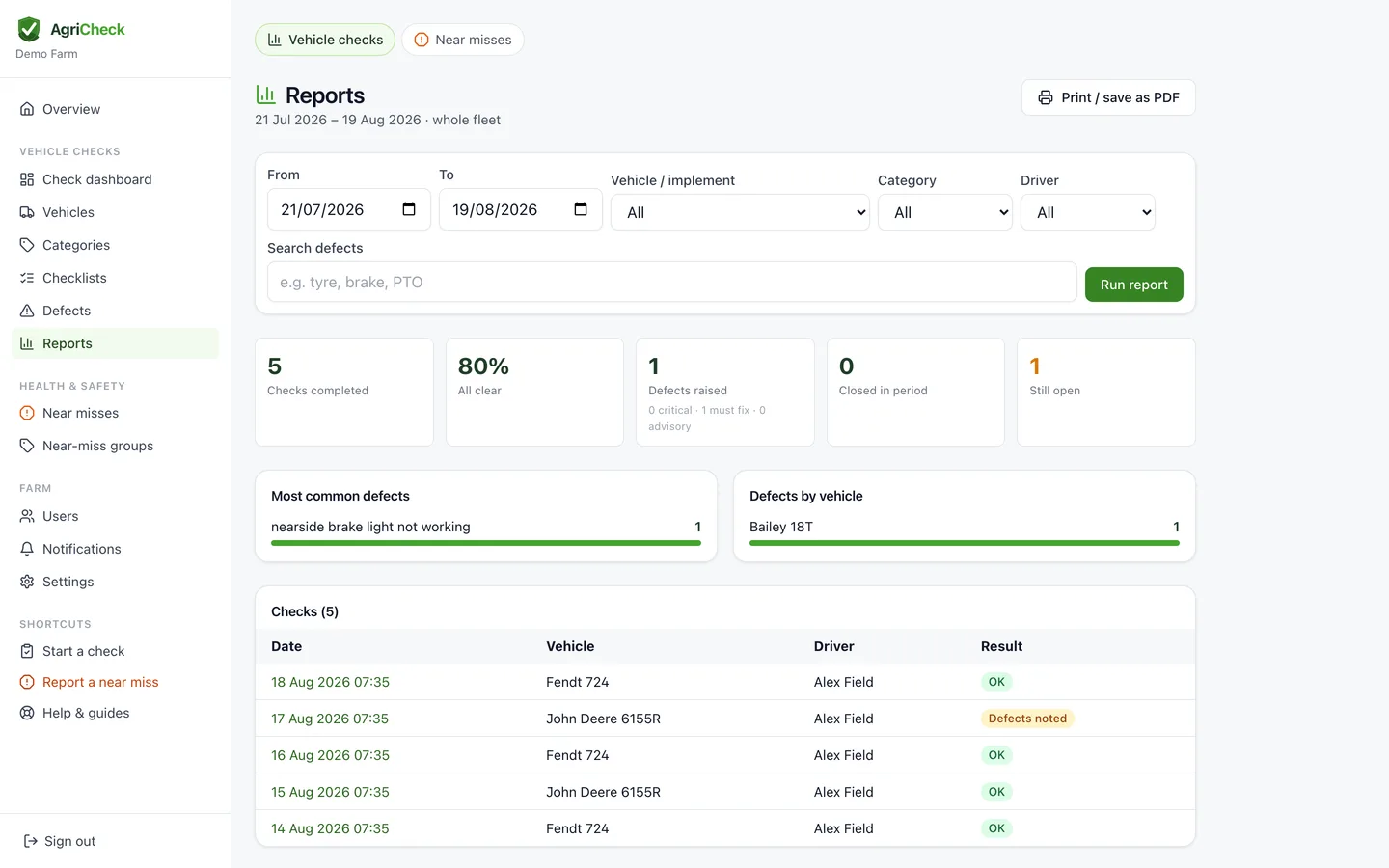
Admin → Reports. Filter by dates, machine, group or driver, then print or save as PDF. You'll see checks completed, defects raised, your most common faults and which machines cause the most trouble.
That's the record to put in front of a Red Tractor or farm assurance assessor, your insurer, or an HSE inspector.
10. Report a near miss
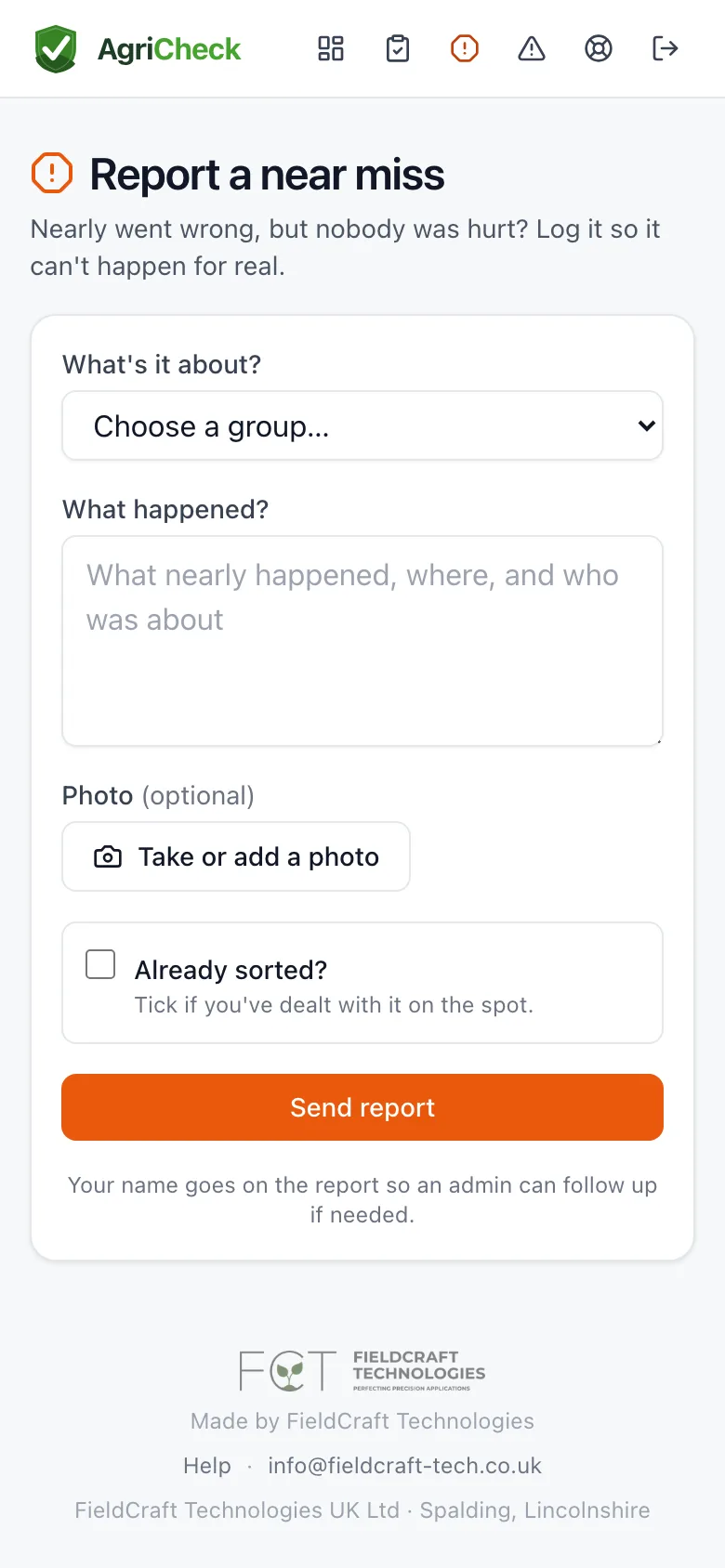
Something nearly went wrong but nobody was hurt? That's exactly what the orange Near miss button next to New check is for. Pick what it was about, say what happened, add a photo if it helps — a minute on a phone, and every admin who wants to know is told.
Anyone on the farm can report one, and admins see them all under Health & safety, with their own report alongside the vehicle-check reports. Logging near misses is the cheapest safety improvement there is — it's how the next one stops being a real accident.
Running lorries (HGV)
Daily walk-arounds, 6-weekly checks, annual tests, tacho calibrations and services — alongside your farm kit or on their own. Skip this part if you only run farm machinery.
1. Turn the lorry side on
Admin → Settings → What do you run? Choose 'Farm with lorries' if you run both, or 'HGV only' if you're a haulier with no farm kit. Save and the HGV side appears.
Anything to do with lorries and trailers is blue, and farm machinery stays green, so at a glance you always know which side of the business you're looking at. On an HGV-only account the word 'farm' never appears.
2. Add a lorry or a trailer
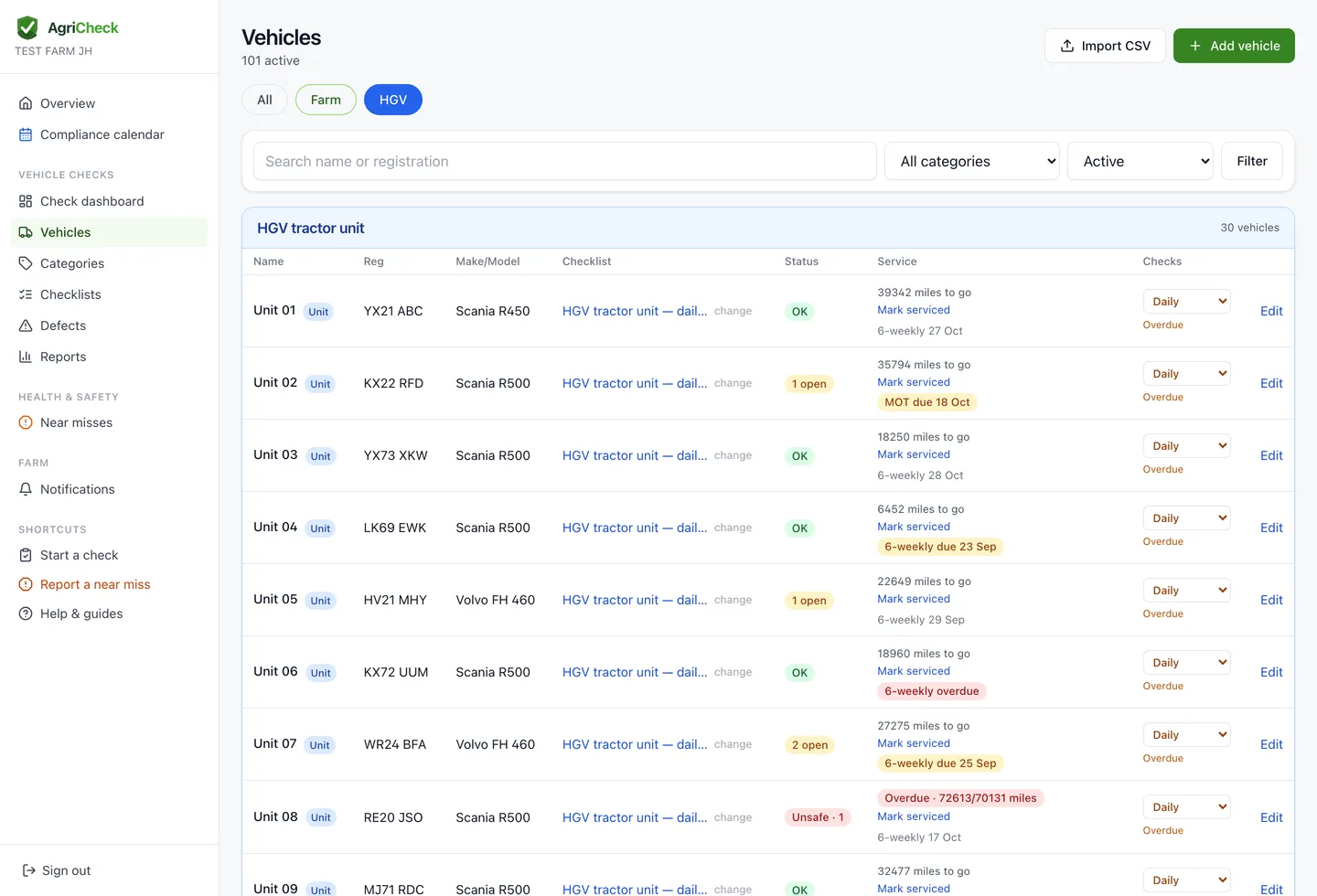
Admin → Vehicles → Add vehicle, then pick the type: HGV tractor unit, HGV rigid lorry, or a trailer — curtainsider, fridge/freezer, bulk tipper, skeletal, flatbed, low loader, walking floor, car transporter, livestock, drawbar, extendable, or a liquid, powder, vacuum or hazmat (ADR) tanker.
Each type starts from its own DVSA-style daily walk-around list, which you can edit like any other checklist. Choose km or miles per vehicle — a driver can enter either and it converts.
Trailers have no odometer, so they get a date-based service instead: every so many weeks or months, your choice. You can also record the wheel torque setting and the re-torque distance, and the driver sees them on every check.
Trailers without a plate need their own names. If you already have an RJW 1, the app tells you and suggests RJW 2. Two vehicles can share a name as long as their registrations differ.
3. The compliance calendar
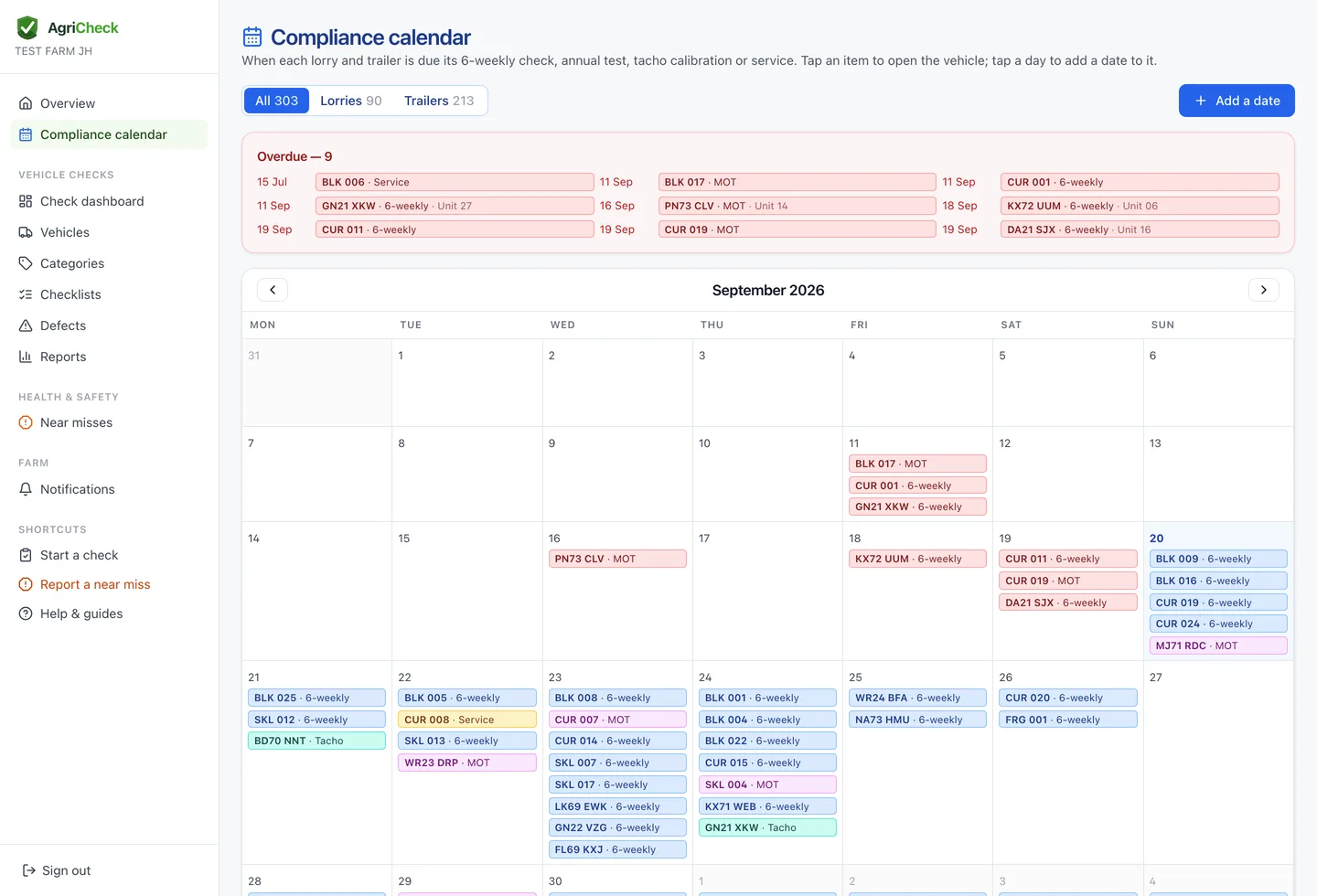
Everything with a date lives in one place: Admin → Compliance calendar. The 6-weekly safety inspection, the annual test (MOT), tachograph calibration and services, each in its own colour, with anything overdue listed above the month.
Lorries show by registration and trailers by their fleet name, which is how the yard talks about them. Tap any day to add a date — MOT, 6-weekly, tacho or service, more than one at once — and pick the vehicle; it's written straight back to that vehicle's record.
Use the All / Lorries / Trailers switch to look at just one or the other. Your choice is remembered. The next seven days also appear at the top of the dashboard, so the first thing you see when you log in is what's due this week.
4. A driver's day
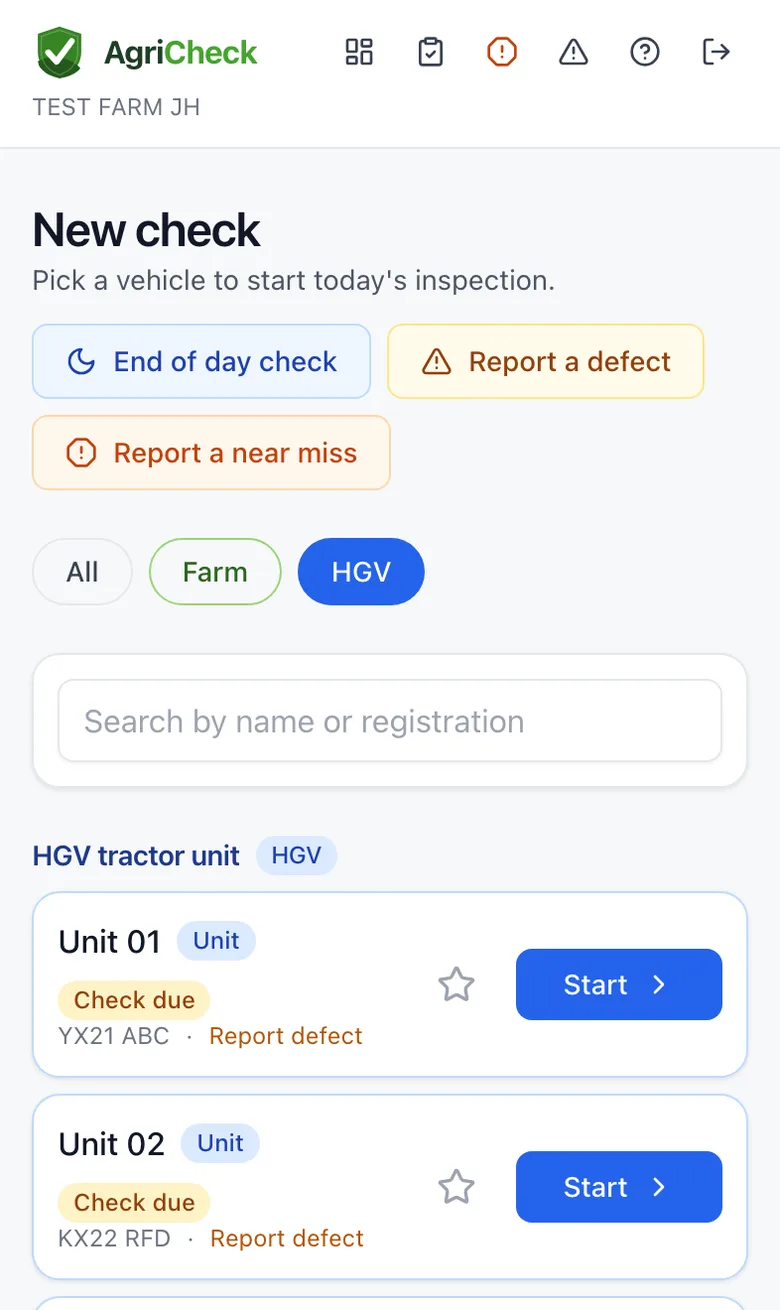
Morning: the driver opens AgriCheck, taps HGV to filter to lorries, picks the unit and works through the walk-around, entering the mileage. If they're pulling a trailer, they check that too — it's a separate record, as it should be.
During the shift: the amber Report a defect button. They pick which of today's checks it belongs to and choose the item straight from that vehicle's checklist — tyres, lights, brakes — so it lands on the right record without typing.
End of the shift: End of day check. It lists what they checked that morning, takes the closing mileage, and asks All OK or Something's wrong. If something's wrong it hands straight over to the defect report.
All of it works with no signal and sends itself when they're back in range.
5. Give someone the transport manager role
Admin → People → tap someone's role → Transport manager. It's the operator-licence role: the compliance calendar and near misses always come with it, and you tick what else they can do — fix and sign off defects, edit machines and services, edit checklists, view reports.
They never get people, settings or billing; those stay with admins. With Defects ticked they also receive the critical-defect emails, which matters when a lorry is taken off the road.
6. Running farm and lorries together
On a mixed account you get an All / Farm / HGV switch on Vehicles, Start a check, Groups and Checklists. Pick the side you work on most and it's remembered, so drivers aren't scrolling past combines to find a curtainsider.
Everything else works the same on both sides — the same checks, defects, photo evidence, near misses, reports and offline working. One app, two sides.
Common questions
Does it work for trailers and implements, not just road vehicles?
Yes. AgriCheck was built for farm kit — tractors, trailers, sprayers, telehandlers, combines, cultivators and ATVs all have ready-made checklists, and you can build your own list for anything else in the yard.
Do you cover HGVs and lorries?
Yes — see the lorries section above. Turn it on in Settings, add tractor units, rigids and any common trailer type, and each starts from its own DVSA-style daily walk-around list. A lorry is overdue the moment it hasn't been checked today, and the compliance calendar tracks the 6-weekly check, annual test, tacho calibration and services.
How do the 6-weekly and MOT reminders work?
Enter the last 6-weekly inspection and the interval (six weeks by default) and the next date is worked out for you. MOT and tacho calibration are dates you enter. They show on the compliance calendar, on the week-ahead strip on your dashboard, and against the vehicle itself — amber when due soon, red once overdue.
How do trailers work if they have no mileage?
Trailers get a date-based service instead: every so many weeks or months, whichever suits. They still get their own daily walk-around, their own 6-weekly inspection and their own annual test, because a trailer is its own vehicle. Trailers without a plate are identified by their fleet name, and the app stops you giving two of them the same one.
What is the transport manager role?
The operator-licence role. They get the compliance calendar and near-miss triage automatically, plus whatever you tick: defects, machines and services, checklists and reports. They can't manage people, settings or billing — that stays with admins. The role only appears once your account runs lorries.
Can we run farm machinery and lorries in the same account?
Yes, that's what 'Farm with lorries' is for. You get an All / Farm / HGV switch on the vehicle, checklist and group pages, HGV shown in blue and farm in green. Drivers pick their side once and it's remembered.
Does the offline mode work for lorries too?
Yes, and it's the same for both sides. The walk-around, the mid-shift defect report and the end-of-day check all work with no signal, photos included, and send themselves when the phone is back in range.
Does it work where there's no phone signal?
Yes. Open AgriCheck once where you have signal and your machines and checklists are saved to the phone. After that you can do a full check offline, photos included, and it sends itself when you're back in range. Open the app once you're back so anything waiting can go — and remember a critical fault can't reach your admins by email until it does.
Do we need to install an app?
No. AgriCheck runs in any phone browser. Open agricheck.co.uk, then use your browser's Share or menu button and choose Add to Home Screen — it opens full screen like an app, with no app store involved.
How does it help with Red Tractor or a farm assurance audit?
Every check and defect is timestamped and attributed to a named person, and photos are kept with the record. Reports can be filtered and printed for the period an assessor asks about.
What does Critical mean on a check item?
A failed critical item flags the machine as Unsafe across the whole app and it can't be cleared by the driver — an admin must sign off the repair first. Use it for faults that should genuinely stop the machine.
A driver can't see our farm — what's wrong?
Almost always the email doesn't match. They must sign up with the exact address the invite was sent to, or enter the invite code. If they were asked to create a new farm, they've signed up with a different address — send them the code instead.
Someone forgot their password.
On the sign-in screen tap Forgot password, enter the email they sign in with, and follow the link that arrives. Nothing else about their account changes.
Can one person work for more than one farm?
Yes. Contractors and relief drivers can belong to several farms and switch between them from the menu, with the right role in each.
A photo won't upload.
Photos are shrunk on the phone before sending, so signal is usually the culprit. Wait until you have a bar or two and try again — the check keeps everything else you've entered.
What does it cost?
£450 + VAT a year for the whole farm, with unlimited drivers and machines. Every farm gets 30 days free first, with no card needed to start.
How do we pay, and can we cancel?
Pay by card in the app (renews yearly), or ask us for an invoice if you prefer. Cancel any time from Settings; you keep access until the end of the period you've paid for.
Still stuck?
Email info@fieldcraft-tech.co.uk and a real person will get back to you.